-
Sep 26, 2025, 9:16 am2.2k ptsInteresting Special Content
In today's digital world, videos have become a popular source of entertainment, capturing memories, and enhancing knowledge. You can easily play your video files on any device, including your iPhone. But what if your important videos get permanently deleted from your iPhone? Losing such valuable content that's too permanent can put you in trouble.
The good news is that recovery is often possible. Luckily, there are several video recovery workarounds available that you can try to recover permanently deleted videos on an iPhone. From Apple's built-in tools like iCloud and iTunes to professional iPhone data recovery software, go through these recovery workarounds one by one to get your videos back. Let's get started!
Common Reasons for Permanent Deletion of Videos on iPhone
Before you apply any video recovery method to retrieve your deleted videos, it's important to understand why permanent deletion occurs. Here are some common reasons:
Deletion of Videos from Recently Deleted Folder
When a video is deleted from your iPhone, it goes to the Recently Deleted folder, where it remains for 30 days before being permanently erased. If you've deleted videos from this album, it leads to permanent deletion.
iCloud Sync Issues
If you've synced your iPhone with iCloud, deleting videos from any Apple device removes them from all synced devices.
Factory Reset or iOS Update Errors
Restoring your iPhone to factory settings or experiencing an iOS update crash is also one of the main reasons for the permanent deletion of videos and other data.
Failed Backup
If videos weren't backed up to iCloud, iTunes, or a third-party cloud service, every deleted video is permanently lost/erased from your iPhone.
Is It Possible to Recover Permanently Deleted Videos on iPhone?
Yes, it is possible to restore permanently lost videos, though there are some limitations. When a video is deleted, it is not immediately erased from your iPhone. Instead, the space those deleted videos were occupying will be simply marked as "available" for new data.
As long as that space hasn't been overwritten by new files, you can easily restore your lost videos. Even if the video is permanently deleted, you can still recover it using previously created backups or reliable third-party iPhone data recovery tool.
How do I Recover Permanently Deleted Videos on iPhone?
Whether your video is deleted accidentally or on purpose, you can use various iPhone data recovery methods to restore your permanently deleted videos. Just go with the below methods one-by-one to retrieve your videos:
Method 01: Restore from Recently Deleted Album
Before you proceed with any advanced video recovery method, try checking the Recently Deleted album. As mentioned above, all your deleted videos are temporarily stored in this folder before being permanently erased. To restore your deleted videos from this folder:
- Launch the Photos app on your iPhone.
- Scroll down and click Recently Deleted.
- Locate the video you want to recover.
- Select it and click the three dots icon in the right-hand corner.
- Tap Recover to save recovered videos back into the main video library on your device.
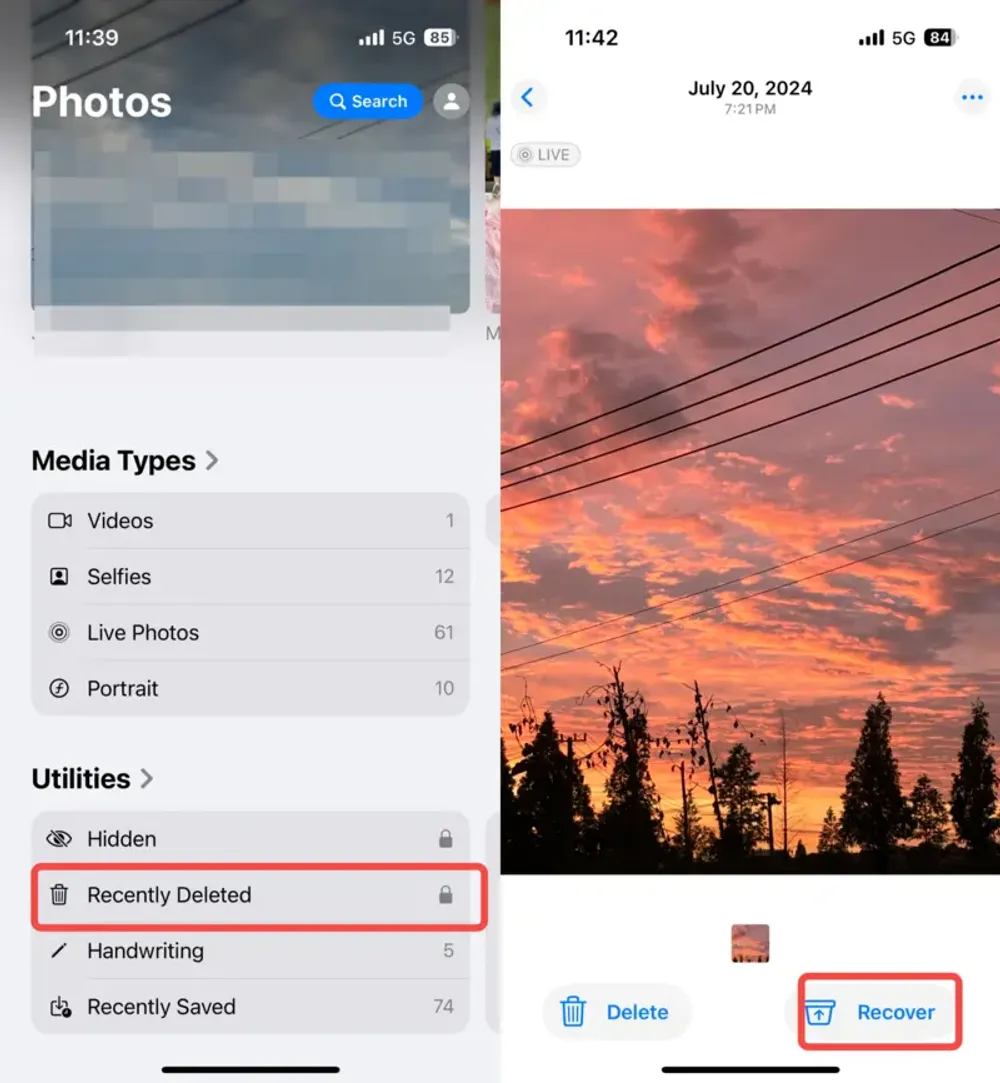
Note: This method allows you to restore videos lost within the last 30 days. If your video was removed earlier, try checking backups or using third-party iPhone data recovery software.Method 02: Recover Videos from an iCloud Backup
Apple devices include a built-in iCloud backup feature that, when enabled on your iPhone or other Apple device, automatically creates backups of your files and folders. If you've synced your iPhone with iCloud backup before video deletion, you can restore it by following the below steps:
- Launch the Settings app and click on your Name at the top of the screen.
- Select iCloud from the list of available backup options.
- Click iCloud > Manage Storage > Backups. Select the most recent backup that may contain your deleted videos.
- Now, you need to reset your iPhone. For this, go to Settings > General > Transfer or Reset iPhone > Erase All Content and Settings.
- From the setup screen, select Restore from iCloud Backup.
- Sign in with your iCloud account and select the backup you want to restore.
That's it! Your iPhone will restore data, including the deleted videos (if available in the backup).
Method 03: Recover Videos via iTunes and Finder Backup
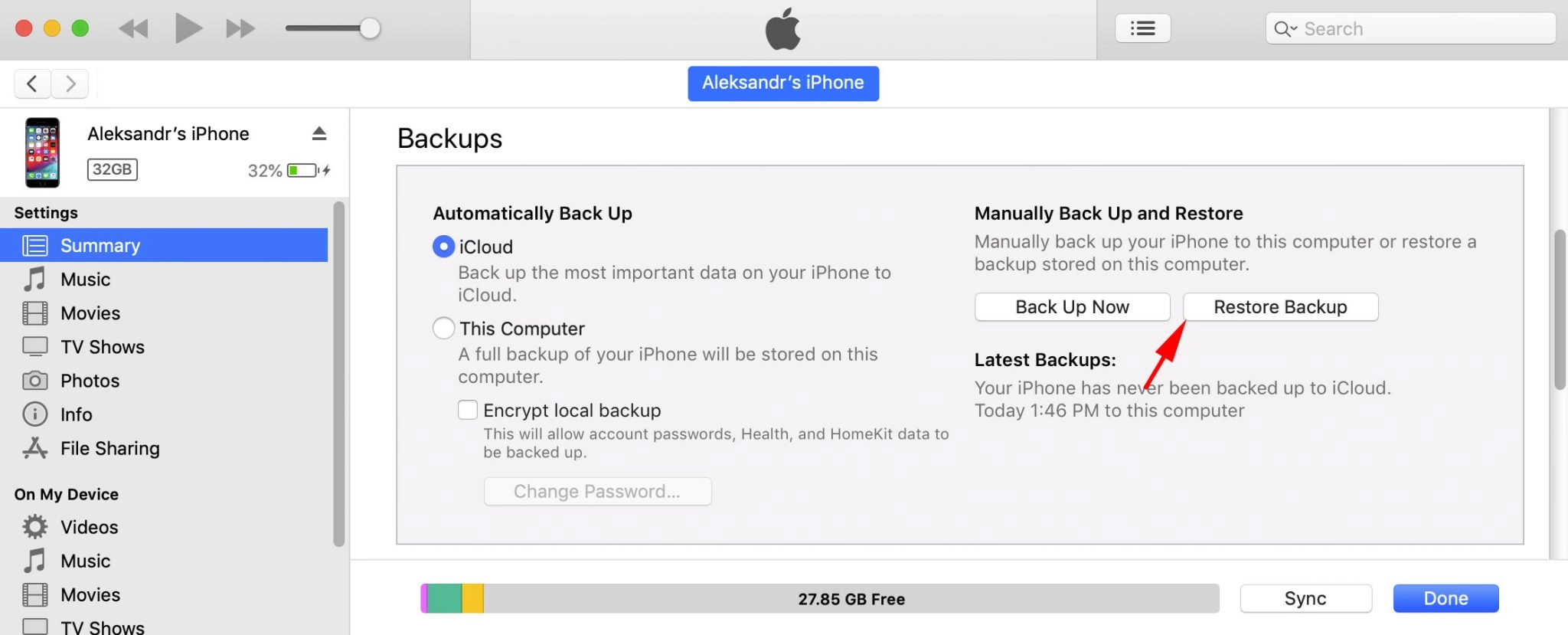
If you've backed up your iPhone via iTunes (Windows) or Finder (macOS), you can also recover deleted videos from these backups. All you have to do is:
- Connect your iPhone to Windows PC/Mac.
- Open iTunes (on Windows/macOS Mojave or earlier) or Finder (on macOS Catalina or later).
- Locate your iPhone from the device screen (usually located at the left end).
- Click Restore Backup and choose the most recent backup that likely contains your deleted videos.
Method 04: Recover Videos Using Third-Party iPhone Data Recovery Software
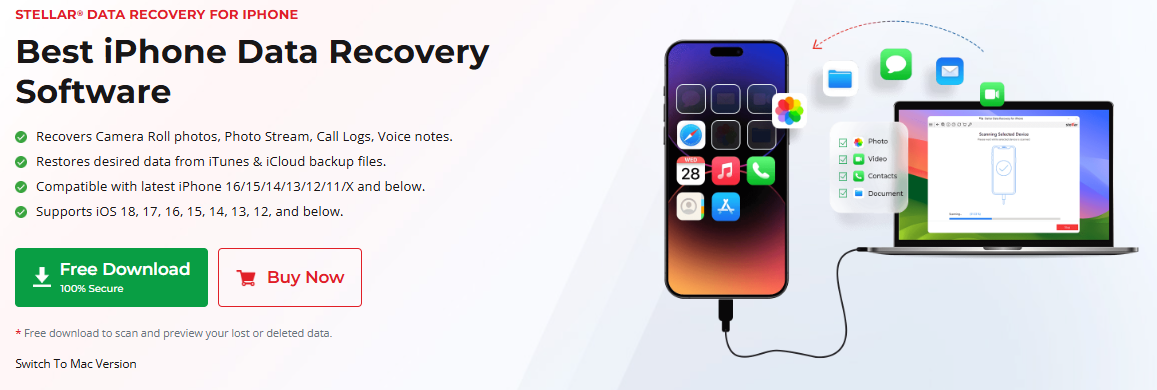
If you don't have a backup of your permanently deleted videos, try third-party iPhone data recovery software tools like Stellar Data Recovery for iPhone to restore lost videos quickly and safely. This professional software is designed to restore lost files of various types and formats from a wide range of iOS devices. It can recover videos deleted due to accidental deletion, device formatting, system errors, or several other scenarios.
Key Features of Stellar Data Recovery for iPhone
- The software supports recovery of deleted photos, videos, documents, and other types of files.
- It offers a simple and intuitive interface, which makes it best even for users with minimal technical knowledge.
- It allows you to preview the recoverable files before restoring them.
- This fully secure and reliable data recovery software is compatible with both Windows and Mac computers.
Here's how to recover permanently deleted videos on iPhone using the Stellar data recovery software:
Step 1: Download and install the Stellar Data Recovery for iPhone software on your Windows or Mac computer. Also, connect your iPhone to that device.
Step 2: Launch the software and from the homepage, select "Recover from iPhone" and click on Camera Roll (or the type of file you need to restore). Click Next to continue.
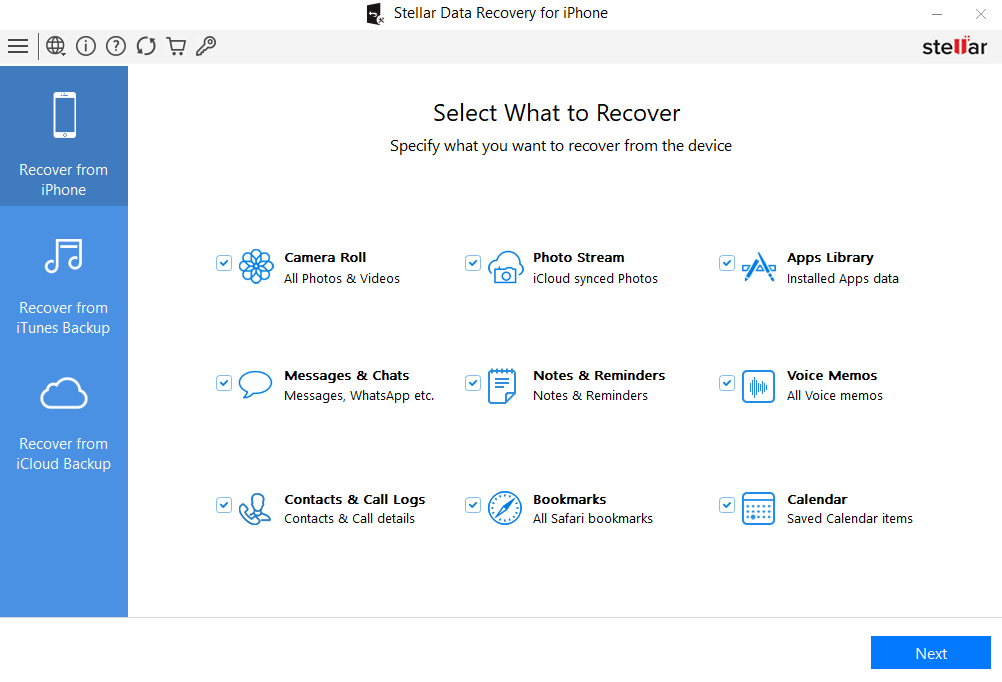
Step 3: Click Scan and wait till the software scans your iPhone for permanently deleted videos.
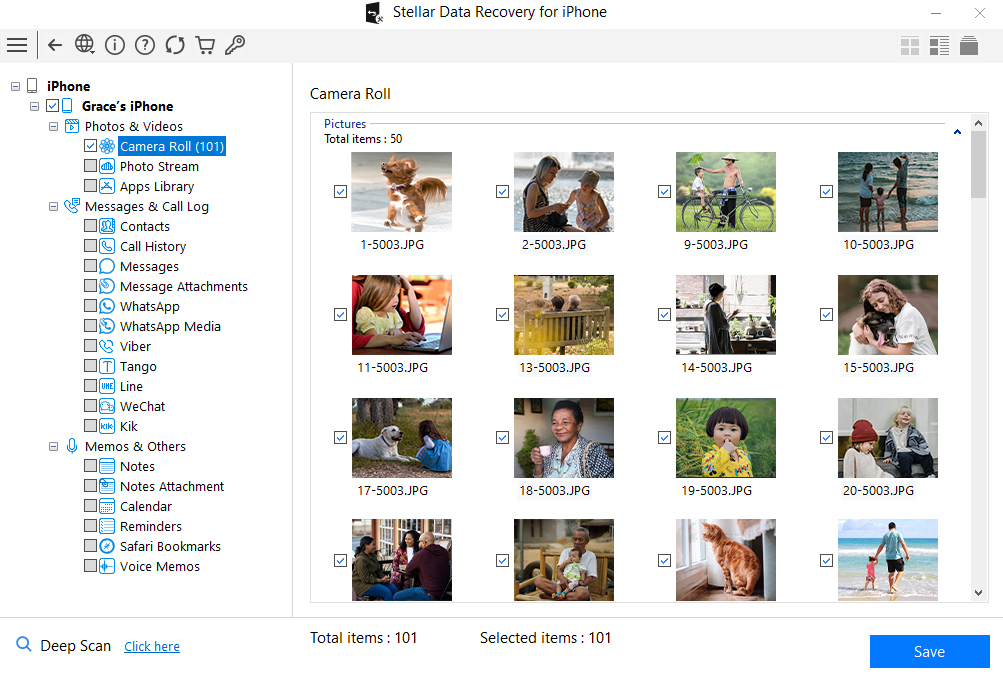
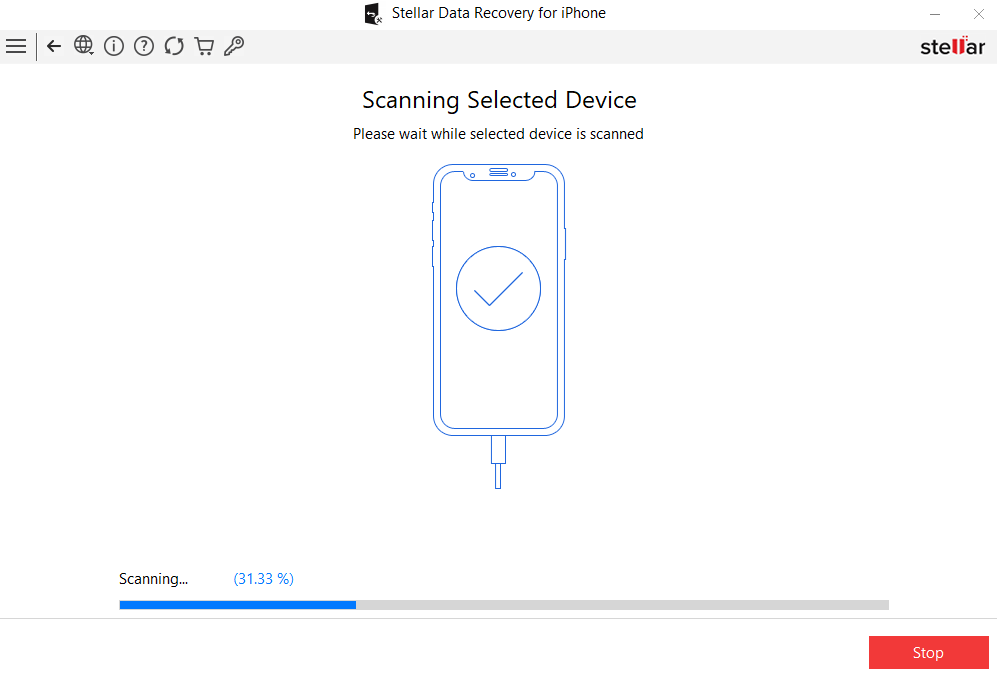 Step 4: Once the scan completes, preview the recoverable files to verify which ones you want. Select the desired videos and click Recover to save them on your computer or transfer them back to your iPhone.
Tips to Maximise Successful Video Recovery
Now that you are familiar with the recovery workarounds to restore your permanently deleted videos on iPhone, check out the following tips to improve your chances of successful recovery:
- Once you find videos deleted from your iPhone, avoid recording new videos, installing apps, or saving files on it. Continuous usage can overwrite deleted files and make recovery quite complex.
- Before applying advanced iPhone data recovery methods to restore your permanently deleted videos, check the Recently Deleted album in the Photos app.
- Regularly back up your iPhone to iCloud or iTunes/Finder to ensure lost videos can be restored easily.
- The sooner you attempt recovery, the higher the chances of restoring permanently deleted videos.
Conclusion
Losing important videos from your iPhone can be distressing, especially if it was deleted permanently. If you ever encounter such an issue, start by checking the Recently Deleted album and iCloud backups. After that, turn to iTunes/Finder backups or third-party iPhone data recovery software tools like Stellar Data Recovery for iPhone.
The key takeaway? Act quickly and back up regularly. The faster you attempt recovery, the higher your chances of retrieving permanently deleted videos on your iPhone.
Trending Today on MacHash







MacHash is your real-time Apple news aggregator, delivering the latest headlines on Apple, Mac, iPhone, iPad, and iOS from top sources across the web.
As a powerful content discovery platform, MacHash continuously curates breaking news, product announcements, software updates, reviews, and industry insights related to Apple Inc. and its ecosystem.
MacHash helps you stay informed on everything from macOS and iOS developments to Apple Watch, AirPods, and the latest in tech and app innovation.
Access MacHash from your desktop or mobile device to explore, follow, and share the most trusted Apple news all in one place.