-
Nov 10, 2026, 3:52 pm23 pts Special Content
Turning raw footage into a polished social video shouldn't take hours of editing. After testing 12 AI video editing tools, five stood out for their ease of use and practical features. For anyone searching for a way to edit video online free, Pollo AI offers a simple prompt-based approach to making visual changes to existing clips. This guide compares what each tool does best and which one suits different editing needs.
1. Pollo AI – Best for Simple AI-Powered Video Editing
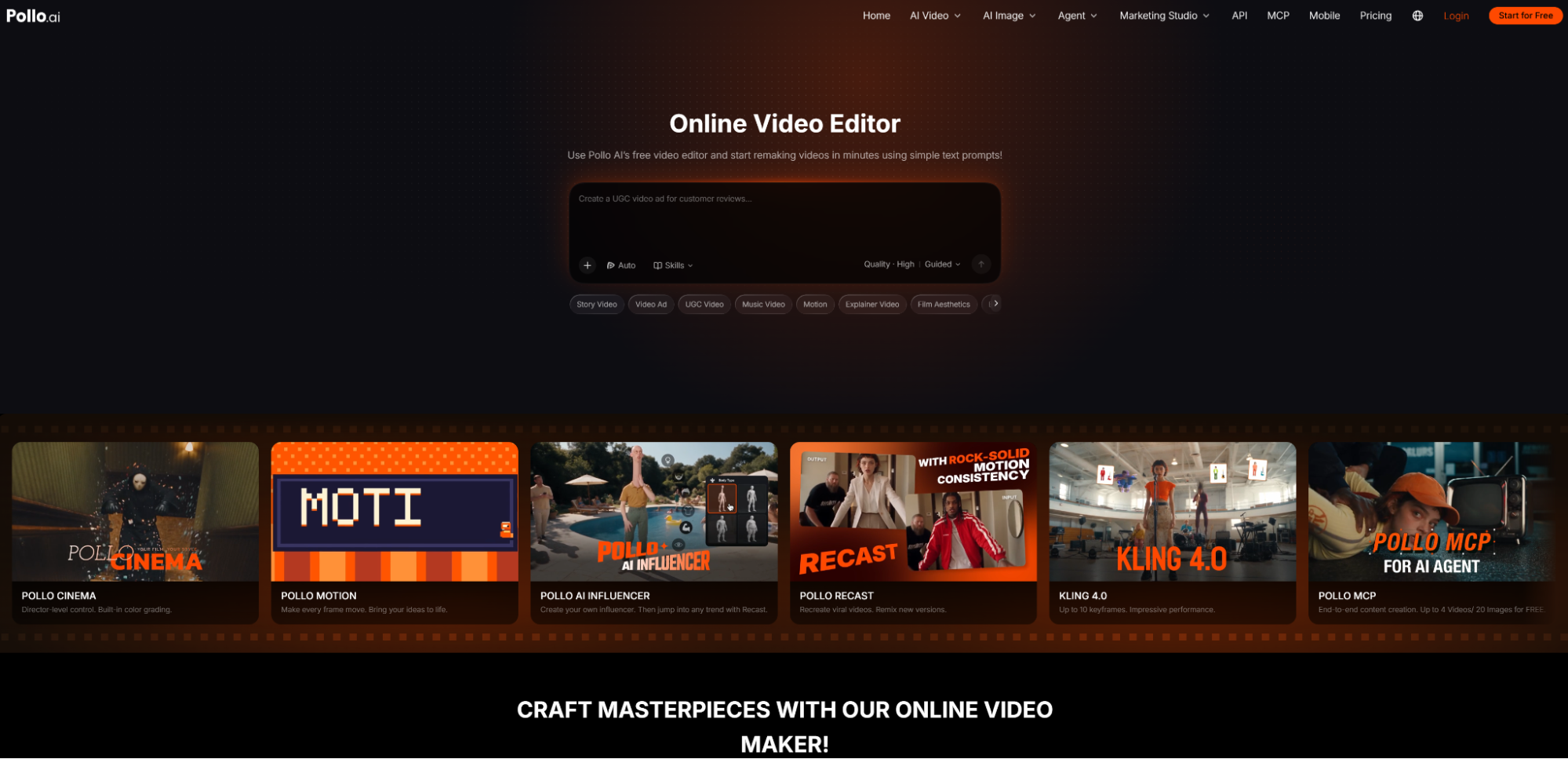
Not every video needs a full editing session. Sometimes, the footage is perfectly usable, but the background is distracting, an unwanted object gets in the way, or the overall look needs a little work. That's where Pollo AI Online Video Editor comes in.
The process is simple: upload a video, describe the changes in a text prompt, add a reference image if needed, and click Create. The AI handles visual adjustments such as replacing backgrounds, adding or removing objects, changing character appearances, and applying different cinematic effects.
For example, an online seller who filmed a product demonstration in a messy room can ask the AI to replace the background with a clean studio setting. A creator working with lifestyle footage might remove distracting objects or give the scene a different visual style. There's no need to work through layers or manually adjust individual frames.
This prompt-based approach makes Pollo AI particularly easy to pick up. It's designed for users who want to change how a video looks without learning a traditional editing workflow. The tool also offers limited free credits, so users can try it before deciding whether a paid plan makes sense.
Pros
- Simple text prompts make visual edits accessible to beginners.
- Supports background replacement, object removal, and visual transformations.
- Reference images offer more control over the intended result.
Cons
- Focuses on AI visual editing rather than traditional timeline controls.
- Doesn't specialize in automatic subtitles or extracting multiple clips from long recordings.
Best For
Beginners, creators, and online sellers who want to improve existing footage without spending time on complicated editing.
2. VEED – Best for Quick AI Edits and Captions
A lot of raw footage doesn't need a complete makeover. It just needs tighter cuts, clearer audio, and captions that make it easier to follow. VEED handles these common editing jobs through its browser-based AI video editor.
Users can upload their footage and use Auto Edits to generate subtitles, clean up audio, insert B-roll, and resize the video for different social platforms. Its Magic Cut feature can also remove filler words, mistakes, and awkward pauses, saving creators from having to scrub through an entire recording to find them.
For example, someone recording a quick product review can upload the footage, generate captions, remove unnecessary pauses, and add supporting visuals before sharing it on Instagram or TikTok. The result can still be adjusted in the editor, so users aren't locked into every decision the AI makes.
VEED is a good middle ground between fully automated editing and doing everything manually. It takes care of repetitive tasks while leaving room for creators to refine the pacing and presentation.
Pros
- Auto Edits combines subtitles, audio cleanup, B-roll, and resizing.
- Magic Cut removes filler words, mistakes, and unnecessary pauses.
- Users can review and adjust the generated edits before exporting.
Cons
- Magic Cut currently supports English only.
- Free exports include a watermark; watermark-free exports require a paid plan.
Best For
Creators, small businesses, and social media teams that want to clean up existing footage and add captions without handling every edit manually.
3. InVideo – Best for AI-Assisted Editing of Raw Footage
InVideo takes a more hands-on approach to AI editing. Its browser-based invideo Editor combines an AI editing assistant with a traditional multitrack timeline, allowing users to delegate the time-consuming parts of editing while keeping control over the finished video.
After uploading raw footage, users can describe the desired result in plain language. The AI can review the recordings, select the strongest takes, remove mistakes and unnecessary pauses, and assemble an editable first cut. It can also search uploaded footage for specific people, objects, actions, or scenes, then find or generate B-roll to fill visual gaps.
This is useful when a project involves more than one or two clips. For example, a small business filming a product demonstration from several angles can ask InVideo to select the best shots, remove repeated takes, and build a first draft. The resulting timeline remains editable, so the creator can rearrange scenes, adjust transitions, and refine the audio before exporting.
Unlike a basic AI clip generator, InVideo works with the actual footage and builds an edit that users can continue working on. The manual editor is free, although AI assistant tasks and generated media use credits.
Pros
- AI can analyze uploaded footage and select the strongest takes.
- Creates editable first cuts rather than just finished, unchangeable videos.
- Supports B-roll, multicamera editing, and shorter versions for different platforms.
Cons
- AI assistant tasks consume credits.
- Its more advanced editing controls may be unnecessary for simple one-clip edits.
Best For
Creators, marketers, and small production teams working with multiple raw clips who want AI to handle the first round of editing.
4. CapCut – Best for Hands-On Editing with AI Tools
Some creators want AI to handle repetitive work but still prefer to make the final editing decisions themselves. CapCut strikes a balance between the two, offering a familiar timeline alongside a range of AI-assisted features.
Users can upload several clips, trim and rearrange scenes, add transitions, insert text, and adjust audio directly in the browser. Automatic captions can generate subtitles from spoken audio, while background removal and text-to-speech provide additional ways to refine a video.
For someone filming a product unboxing on a phone, for example, CapCut makes it easy to bring together packaging shots, close-ups, and demonstration footage. They can arrange the scenes in the right order, add background music, and generate captions without switching between different editing applications.
Unlike prompt-based editors, CapCut still requires users to make quite a few decisions themselves. That's not necessarily a drawback. It gives creators more control over pacing and presentation, especially when several different clips need to work together.
Pros
- Browser-based timeline makes arranging and trimming footage straightforward.
- Automatic captions save time on subtitle creation.
- Includes transitions, effects, audio tools, and background removal.
Cons
- Requires more manual editing than fully automated AI tools.
- Automatically generated captions need checking before publication.
Best For
Beginners and social media creators who want to combine multiple clips, add subtitles, and control how the finished video looks.
5. Canva – Best for Branded Social Media Videos
Canva is a convenient option when a social video needs to look consistent with the rest of a brand's content. Alongside its graphic design tools, it offers Magic Video, which can turn existing photos and footage into a short video with relatively little manual work.
Users can upload one to ten clips or photos, describe the video they want, and optionally choose a visual style. Magic Video then arranges the materials with transitions and music to create a video of up to 60 seconds. The result can be previewed and edited further before downloading.
This is useful for businesses that already have plenty of visual assets but don't want to build every social post from scratch. A small brand, for example, could combine product photos, behind-the-scenes footage, and event clips into a short promotional video, then add its own text, graphics, and brand elements.
Canva is less about detailed video editing and more about getting a presentable piece of content together quickly. One limitation is that Magic Video doesn't automatically reframe subjects, so some footage may still need manual cropping to fit the intended format.
Pros
- Creates short videos from existing photos and clips using prompts.
- Combines video editing with templates, graphics, and brand design tools.
- Automatically arranges footage with transitions and music.
Cons
- Magic Video produces videos of up to 60 seconds.
- Uploaded videos must be under 10 minutes, and automatic subject reframing isn't supported.
Best For
Small businesses, marketers, and social media managers who want to create branded videos without starting from a blank timeline.
Which Online Video Editor Should You Choose?
The right editor depends on what needs fixing in the original footage. For quick visual changes without dealing with a traditional editing timeline, Pollo AI Online Video Editor is the easiest option among these five. The other tools are more useful for different kinds of editing:
- VEED: Useful for cleaning up recordings, removing awkward pauses, generating captions, and improving audio.
- InVideo: A good fit for reviewing multiple raw clips, selecting usable takes, and putting together an editable first cut.
- CapCut: Better for creators who want to arrange clips themselves and fine-tune transitions, subtitles, and audio.
- Canva: Handy for putting together short promotional videos that need consistent fonts, colors, and branded graphics.
Final Verdict
If the goal is to turn an existing clip into a more polished social video without spending time learning editing software, Pollo AI Online Video Editor is the easiest option to start with. Users can upload their footage and describe the changes they want, whether that's replacing a background, removing an unwanted object, or giving a scene a different look. There's no need to make those adjustments manually.
Of course, not every editing job calls for AI visual transformations. Videos that need multiple scenes stitched together, detailed subtitles, or tighter pacing may be easier to finish in CapCut or VEED. But when the footage is already usable and just needs a visual touch-up, Pollo AI keeps the process simple. Its free credits are limited, but they give users a chance to try the editor on a short clip and see whether the results work for their content.
Trending Today on MacHash









MacHash is your real-time Apple news aggregator, delivering the latest headlines on Apple, Mac, iPhone, iPad, and iOS from top sources across the web.
As a powerful content discovery platform, MacHash continuously curates breaking news, product announcements, software updates, reviews, and industry insights related to Apple Inc. and its ecosystem.
MacHash helps you stay informed on everything from macOS and iOS developments to Apple Watch, AirPods, and the latest in tech and app innovation.
Access MacHash from your desktop or mobile device to explore, follow, and share the most trusted Apple news all in one place.