-
Jul 31, 2026, 9:25 am3.8k ptsInteresting Special Content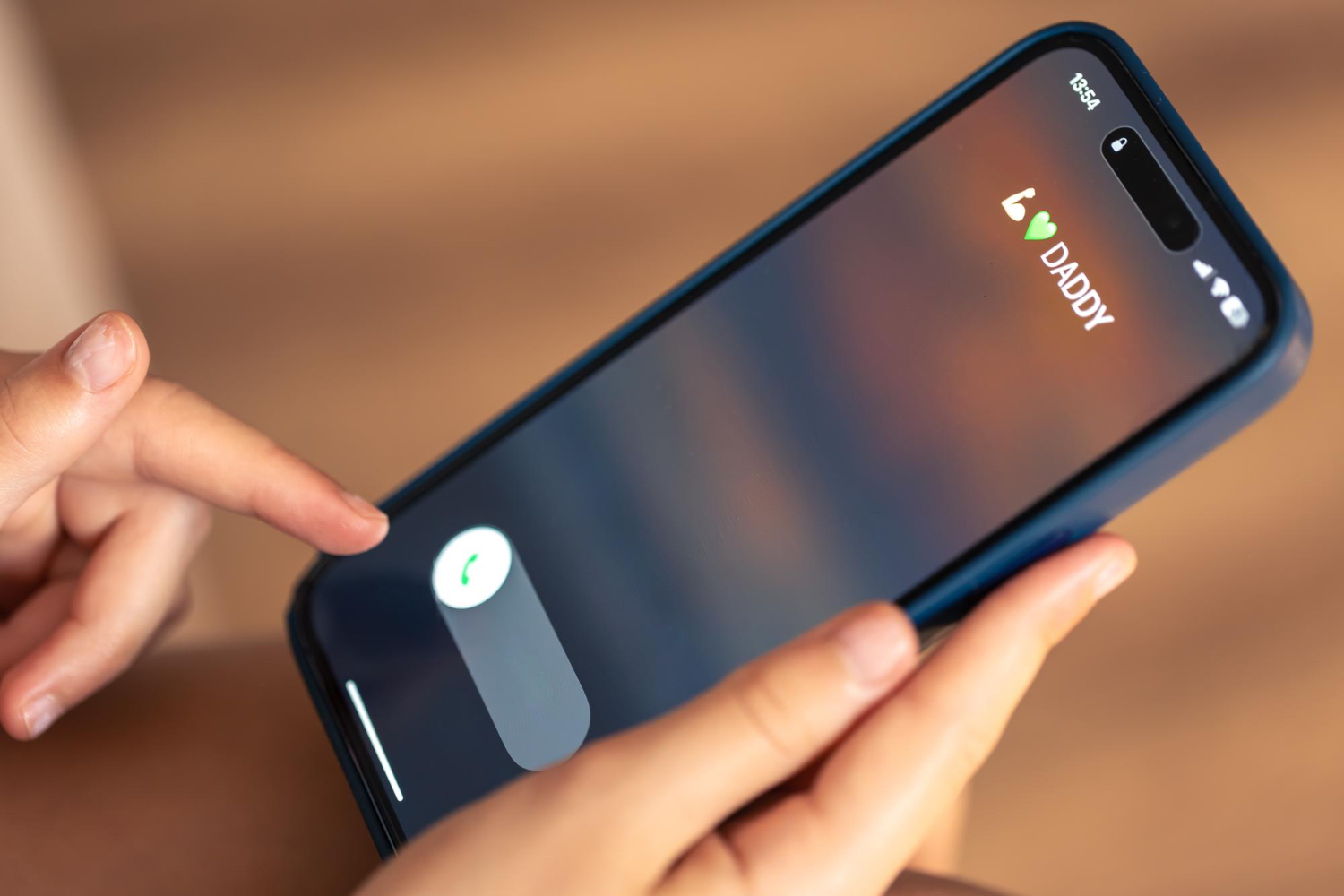
Every iPhone user eventually hits that permission prompt: a website or app wants access to your camera or microphone, and there's a row of options waiting for a tap. Most people pick one without thinking too hard about it. That's understandable, but it means handing over hardware access without a clear sense of what you've agreed to or how to undo it.
Apple's permission system is layered by design. It covers native apps separately from websites, gives you three meaningfully different choices at each prompt, and leaves a visible trail in your status bar so you always know when something is watching or listening. Once you understand how it works, the prompts stop feeling like friction and start feeling like control.
Why the iOS Permission System Is Worth Understanding Before You Need It
The stakes become immediately concrete when you think about browser-based live video chat, a category of real-time entertainment that runs entirely inside Safari and depends on continuous camera access from the moment a session begins. The Lucky Crush editorial team follows how these web-based platforms behave in practice, and what they note is straightforward: Safari handles camera and microphone permissions on a per-website basis rather than granting blanket access to all sites at once, and when any such platform requests camera access, iOS presents a prompt tied specifically to that site's domain.
That means a browser-based live video chat service accessed here runs under exactly the same iOS controls this article walks through. The camera feed doesn't start until iOS has granted permission, and it's granted only to that specific domain, not to Safari as a whole. Knowing what you're agreeing to before your first session on any such platform is the practical point.
What "Allow Once," "Allow While Using App," and "Don't Allow" Actually Do
iOS never activates camera or microphone hardware before you respond to the system-level prompt. That's the baseline. What changes between the three options is how long your answer holds.
"Allow Once" is the most conservative choice. It grants access only for the current session. The next time that same app asks, the prompt comes back. It's useful when you want to use a feature once without making any lasting commitment about that app's access going forward.
"Allow While Using App" is the persistent option. Once you choose it, the app can access the camera or microphone any time it's actively open in the foreground, without prompting again on subsequent launches. This is the right pick for apps you use regularly and trust, where re-prompting every session would genuinely get in the way.
"Don't Allow" blocks the request entirely. The app gets nothing, and it can't work around that answer on its own. The only way the app ever gets access is if you go into iOS Settings yourself and change the permission manually. That's a deliberate friction point, and it's the right one.
How Safari Handles Camera and Microphone Requests from Websites
The permission logic for websites in Safari follows the same underlying iOS controls, but with one important distinction: it operates at the domain level. When a site requests camera or microphone access, iOS presents a prompt tied to that specific domain. Granting it means you've given that site permission, and no other site inherits it automatically.
This per-domain approach matters because a single browsing session might take you across dozens of sites. Safari's design ensures that a camera permission granted to one video platform doesn't quietly extend to anything else you open in the same browser.
When a site requests access mid-session, the prompt appears at that moment. iOS still won't activate hardware silently in the background, so the request is always surfaced to you in real time. Your answer is stored for that domain, which means on your next visit the site may not ask again if you previously chose to allow access.
Reading the Green and Orange Dots in the Status Bar
Apple added the green and orange dot indicators in the top-right corner of the iPhone status bar with iOS 14, and they work at a level no app can touch. They're a hardware-use signal enforced by the operating system itself, not something an app can suppress or fake.
The green dot means the camera is actively in use. The orange dot means the microphone is actively in use. Both can appear separately depending on what a given app or website is accessing at any moment.
When both the camera and microphone are running at the same time, such as during a video call that also captures audio, the green dot takes precedence in the status bar display. You're still covered on both fronts; the camera indicator simply wins the visual slot. If you ever see either dot appear when you're not actively doing something that requires camera or microphone access, it's worth noting which app is open in the foreground.
How to Audit and Revoke Permissions in iOS Settings
Changing your mind about a permission doesn't require waiting for the app to ask again. iOS keeps a full list of every app that has requested camera access under Settings > Privacy & Security > Camera, and a matching list under Settings > Privacy & Security > Microphone. Each entry has a toggle. You can flip any of them off at any time, and the change takes effect immediately.
For websites accessed through Safari, the parallel control lives under Settings > Safari > Website Settings. Individual site permissions are listed there, and you can reset them one by one. This gives you the same granular control over browser-based access as you have over native apps. Choosing "Don't Allow" for a site in that list mirrors what happens at the prompt: the site can't access your hardware until you change the setting back.
Revoking a permission doesn't break the app or site permanently. It simply forces a fresh prompt the next time it needs access. That's the right framing: you're resetting the conversation, not burning anything down.
The whole system, app-level prompts, per-domain Safari controls, and status-bar indicators, is built so that you remain the final decision-maker at every layer. The dots in the corner give you a live read on what's active right now, and Settings gives you a way to revisit any choice you've made. Nothing happens to your camera or microphone without your answer, and every answer is reversible.
Trending Today on MacHash






MacHash is your real-time Apple news aggregator, delivering the latest headlines on Apple, Mac, iPhone, iPad, and iOS from top sources across the web.
As a powerful content discovery platform, MacHash continuously curates breaking news, product announcements, software updates, reviews, and industry insights related to Apple Inc. and its ecosystem.
MacHash helps you stay informed on everything from macOS and iOS developments to Apple Watch, AirPods, and the latest in tech and app innovation.
Access MacHash from your desktop or mobile device to explore, follow, and share the most trusted Apple news all in one place.